
The Academic Ingestion Bottleneck: Bridging Physical Libraries and Digital Notes
Academic writers and postgraduate researchers spend hundreds of hours manually copying passages from physical books into note-taking systems. A simple transcription error in a legal citation, historical statistic, or scientific formula can undermine an entire published paper.
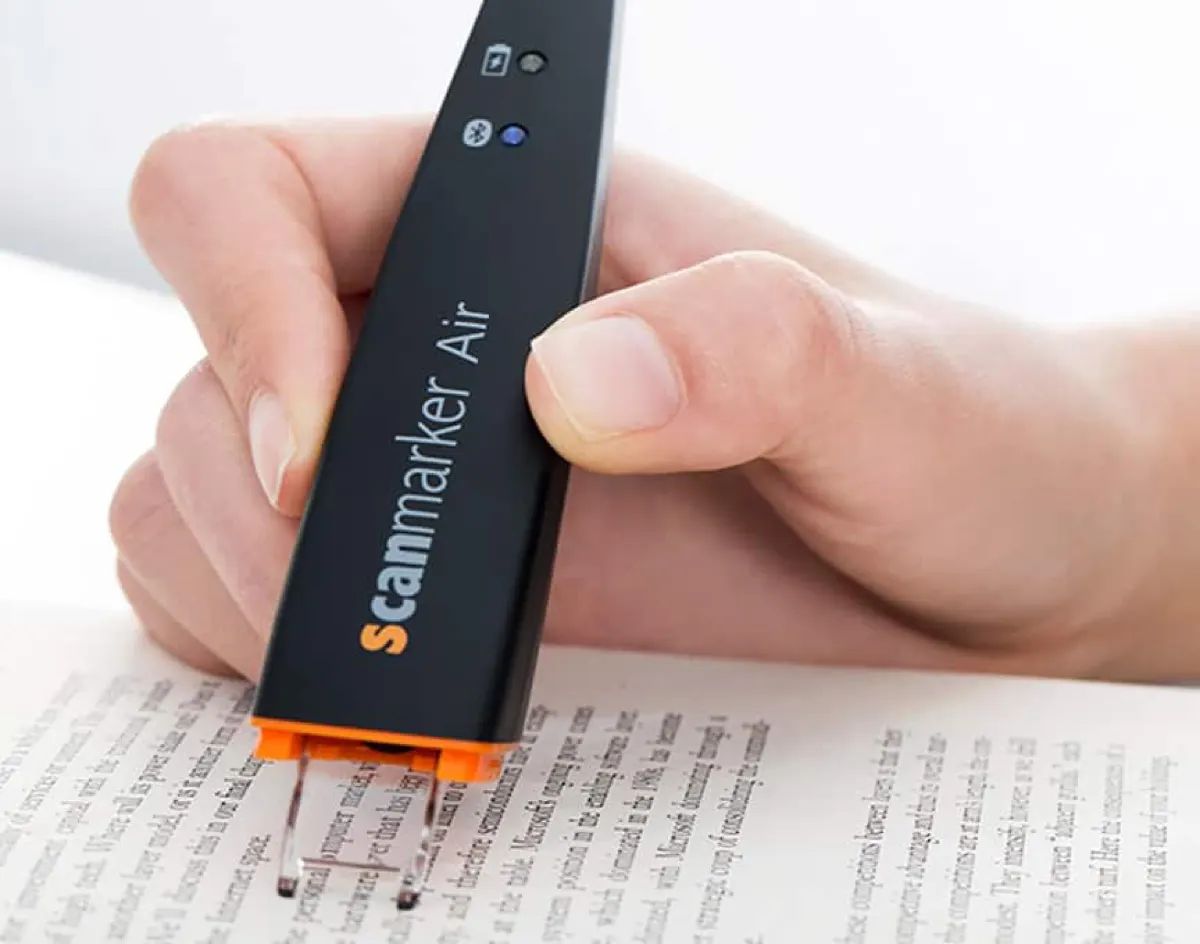
While smartphone camera apps can snap whole-page photos, they create an unorganized camera roll of illegible page images that must be manually cropped and transcribed later. An OCR scanning pen allows for <b>surgical, line-by-line text capture</b>: you glide the pen across the exact sentence you need, and the formatted text appears instantaneously wherever your cursor is placed in your computer.
Direct-to-Application Ingestion: Integrating with Your Digital Knowledge Base
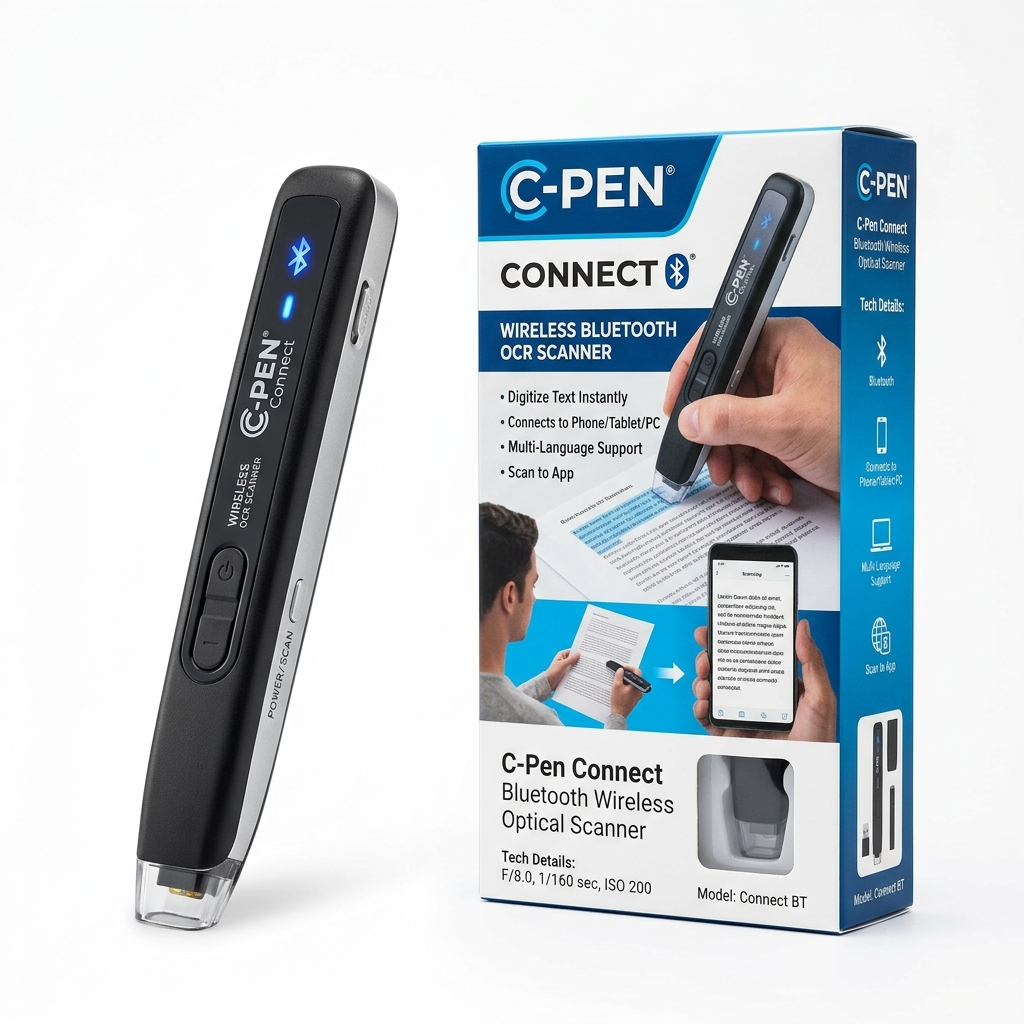
Connected OCR pens (such as the <b>Scanmarker Air</b> and <b>Scanmarker Pro</b>) communicate with modern operating systems using standard Human Interface Device (HID) protocols. This means they require no proprietary plugins to work with your existing scholarly software stack:
- Reference & Citation Managers (Zotero, Mendeley, EndNote): Place your cursor in the "Abstract" or "Notes" field of a bibliographic record, scan the relevant book paragraph, and the text is entered with perfect punctuation and spacing.
- Note-Taking & Personal Knowledge Management (Obsidian, Notion, Roam Research, Logseq): Capture excerpts directly into Markdown files alongside your personal thoughts, creating an interconnected web of physical literature notes.
- Scholarly Writing Environments (Microsoft Word, Scrivener, Google Docs, LaTeX / Overleaf): Insert block quotations directly into active drafts. Configure the pen driver to automatically insert quotation marks or line breaks after each scan.
- Spreadsheets & Tabular Data (Excel, Google Sheets): Set the scanning delimiter to "Tab" to automatically jump across columns with each scan, enabling rapid digitization of financial records, historical tables, and census data.
Mastering Difficult Academic Substrates and Micro-Typography
Academic books present unique optical challenges that defeat basic OCR software. High-performance scanning pens handle these demanding conditions through specialized optical engineering:
Small 6pt Footnotes and Superscripts: Standard OCR struggles with tiny footnote numerals and Latin abbreviations (e.g., ibid., et al.). Precision sensor arrays with 300+ DPI optical resolution parse sub-pixel strokes accurately down to 6-point type.
Tightly Bound Hardcover Gutters: Academic monographs often feature rigid bindings with steep curved inner margins. Tapered scanning tips allow the pen to reach deep into the gutter at steep angles (up to 80 degrees) without lifting the optical glass off the paper.
Brittle Archival Paper: Rare book collections prohibit heavy contact scanners or intense heat. A lightweight pen with smooth Teflon-glide skids exerts minimal mechanical pressure (less than 15 grams of force) on delicate, non-circulating volumes.
Multilingual Diacritics: Scholarly sources frequently contain Latin, German umlauts, French accents, Polish ogoneks, and Cyrillic script. Advanced multilingual engines recognize complex international character sets seamlessly.
Standalone Field Research vs. Connected Desktop Synthesizing
Researchers must choose the appropriate device architecture based on their study environment:
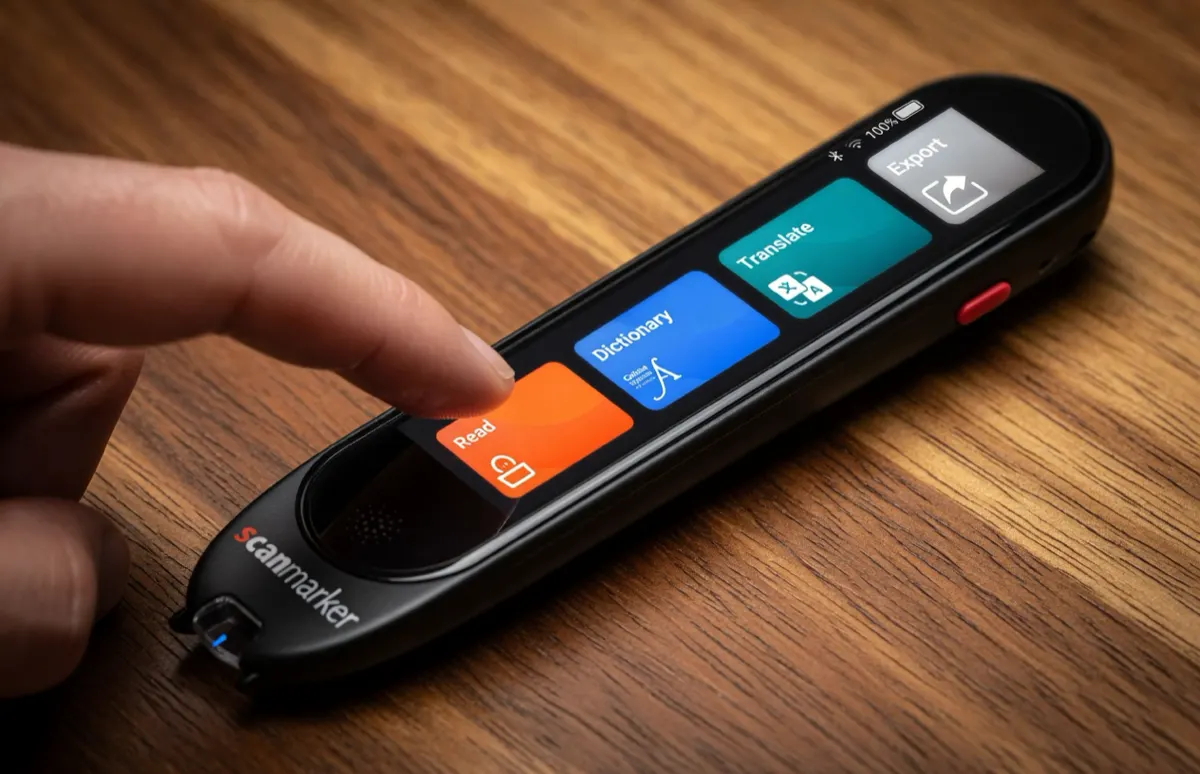
Archival Visits & Field Research (Scanmarker Max): Many specialized libraries, national archives, and rare manuscript rooms prohibit laptops or external cables in their reading rooms. A standalone pen like the Scanmarker Max operates entirely independently, capturing and storing recognized text on internal flash storage for later export.
Desk Research & Manuscript Synthesis (Scanmarker Air): When sitting at a desk with a dual-monitor computer setup, the wireless Scanmarker Air provides maximum agility. Weighing only 50 grams, it glides across open books and drops text directly into your active document without cords or lag.
Master Academic Research Pen Comparison Table
All models support cross-platform operation on Windows, macOS, and ChromeOS. Connected models type via standard virtual keyboard emulation without requiring administrative privileges.
| Model | Form Factor | Price | OCR Speed | Software Compatibility | Language Breadth | Best Academic Workflow |
|---|---|---|---|---|---|---|
| Scanmarker Air | Wireless Connected (BLE) | $169 | < 1.0 sec/line (~3,000 CPM) | Word, Docs, Zotero, Obsidian, Notion | 80 Online Languages | Cordless desk research & laptop citation ingestion |
| Scanmarker Pro | Connected (BLE + USB) | $249 | < 1.0 sec/line (~3,000 CPM) | Full Desktop Suite + Collins Dict | 112 Online Languages | Enterprise research, legal briefs & multilingual texts |
| Scanmarker Max | Standalone Edge AI | $299 | < 1.0 sec/line (~2,800 CPM) | Onboard Memory + Web App Sync | 30 Offline / 112 Online | Archival library visits, rare books & offline field work |
| Scanmarker USB | Wired Connected (USB) | $79 | < 1.0 sec/line (~3,000 CPM) | Word, Excel, Docs, Library Terminals | 80 Online Languages | Budget desktop transcription & high-volume data entry |
Scanning Pens vs. Smartphone Camera OCR: Why Line-Level Extraction Wins
While mobile apps like Google Lens or Apple Live Text can digitize text, they introduce significant friction during serious academic work:
- Zero Distraction: A smartphone brings notifications, email alerts, and social media temptations into the study environment. A dedicated scanning pen keeps the researcher's cognitive focus entirely on the material.
- Targeted Line Selection: A phone camera captures an entire page, requiring tedious pinch-to-zoom cropping to isolate a single two-line sentence. An optical pen captures exactly the target sentence as you read it.
- Library Etiquette: Photographing pages with a smartphone creates mechanical shutter noise and glare from camera flashes, violating silent library rules. A scanning pen operates in total silence.